> For the complete documentation index, see [llms.txt](https://docs.servoy.com/llms.txt). Markdown versions of documentation pages are available by appending `.md` to page URLs; this page is available as [Markdown](https://docs.servoy.com/reference/servoy-cloud/cloud-control-center/application-overview/applications/security/security-login-designer.md).
# Login templates
Reference page for the Login templates for a Servoy Cloud Application
## Overview
The Login templates page allows you to personalize your application's login experience. To customize your login screen, follow these steps:
**Navigate to Login Templates**:
* Go to **Application** → **Your Application** → **Security** → **Login templates**.
* Locate the solution you want to configure.
* Click the **three dots menu** on the right side of the solution row.
* Select **Configure login** from the dropdown.
## Customize Login
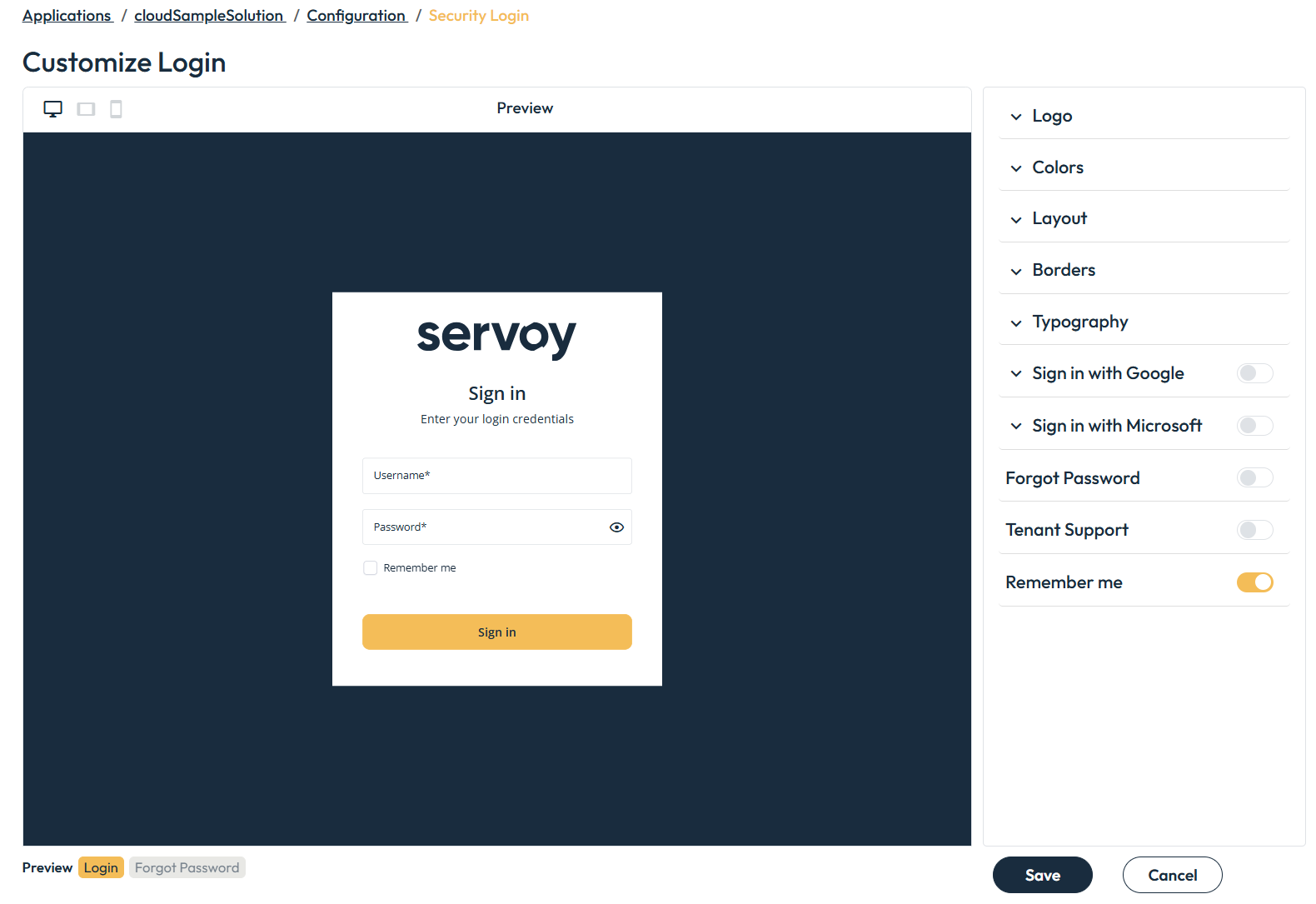
Application Security Login Designer example
**Defining Colors**
To customize a color for a specific property:
1. **Enter a HEX Color Code**: Type a valid HEX color code (e.g., `#e515f4`) in the text input field.
2. **Use the Color Picker**: Click the color picker square to open the color picker dialog and choose a color. This will generate a valid HEX color code.
3. **Revert to Default Color**: To reset to the default color, clear the current value from the color input field.
Define color using color picker
### Preview
See a real-time preview of your login page. Use the preview tabs to switch between different parts of the login flow, such as 'Login' and 'Forgot Password'.
### Logo
Sets the **company logo** on the login flow. Enter the URL of the logo you want to display.
{% hint style="info" %}
If no URL is provided, the default Servoy logo will be used.
{% endhint %}
### Colors
Customize the colors used for various elements on the login flow pages, such as titles, input labels, buttons, and more.
{% hint style="info" %}
If no color code is provided, the default colors will be used.
{% endhint %}
### Layout
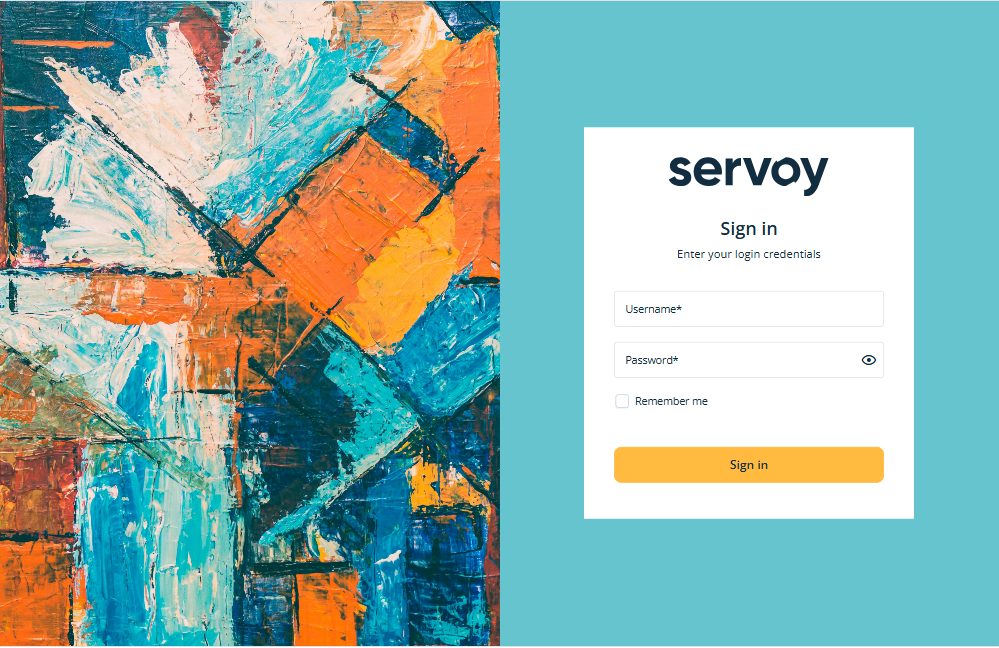
Control the alignment and appearance of the login form widget to suit your design preferences. You can select from the following alignments:
* **Left:** The form widget is positioned on the left side of the screen, and the background image or color appears on the right.
* **Center:** The form widget is centered, and the background image or color spans the full screen.
* **Right:** The form widget is positioned on the right side of the screen, and the background image or color appears on the left
{% hint style="info" %}
The **form widget** is the area that contains the login form itself. This includes the form's text fields, buttons, and labels.
{% endhint %}
#### Background Image URL
Specify a background image by providing its URL. This allows you to personalize the login page with an image that aligns with your branding.
{% hint style="warning" %}
You can display either a background image or a background color, but not both, as they occupy the same space.
{% endhint %}
#### Page Background Color
Set a background color for the page to match your branding or design preferences.
{% hint style="warning" %}
You can display either a background image or a background color, but not both, as they occupy the same space.
{% endhint %}
#### Form Widget Color
Customize the color of the form widget, the area that contains buttons, input fields, and other interactive elements.
#### Form Background Color
Customize the **background** color of the login form, the area behind the form widget, to ensure clear contrast with the page background and form widget color.
Example: Right layout with white form widget color and blue form background
### Borders
Customize the borders of the form widget and its elements, including:
* **Button Border radius**
* **Input Border radius**
* **Form Border radius**
* **Form Shadow:** Add or remove the box-shadow styling of the form widget
### Typography
Customize various properties to refine the text styling of the login flow.
#### Font Family
Allows you to choose the desired font family for text across the login flow.
#### Font Size
Enables you to adjust the size of the text elements to suit the design and improve readability.
#### Font Weight
Modifies the weight/thickness of the text for labels and other elements to establish a clear visual hierarchy.
#### Link Style
Lets you customize the appearance of links, choosing whether they should be underlined or styled normally.
#### Label Type
Provides the option to select the label behavior for form inputs. You can choose between floating labels, which shift above the input field when focused, or static labels, which remain in place.
#### Label Layout
Allows you to set the text **alignment for static labels**, with options to align the text to the left, center, or right.
### Remember me
Add a "Remember Me" checkbox to your login form, allowing users to stay signed in for convenience.
{% hint style="warning" %}
Note: This feature is not currently supported for Single Sign-On (SSO) methods.
{% endhint %}
### Tenant Support
Enable tenant support to allow your Servoy Cloud Application to serve multiple tenants, filtering data and controlling access accordingly.
**To enable tenant support:**
1. In the **Security Login Designer**, toggle the **"Enable Tenant Support"** switch.
2. Define tenants within the **Application** → **Security** → **Tenants** settings.
3. Link tenants to users by navigating to **User Management** → **Users** → **User Details**.
4. Go to the `Tenants` tab, click `Add Tenant` button, and select tenants from the available options.
**Tenant Selection Behavior:**
* **Multiple Tenants:** If a user is linked to more than one tenant, they will be prompted with a selection screen upon login.
* **Single Tenant:** If a user is linked to only one tenant, they will automatically log in to the application without a selection screen.
### Single Sign-On (Sign in with)
Allow users to log in using alternative providers such as [Google](/reference/servoy-cloud/cloud-control-center/application-overview/applications/security/security-login-designer/single-sign-on/sign-in-with-google.md) or [Microsoft](/reference/servoy-cloud/cloud-control-center/application-overview/applications/security/security-login-designer/single-sign-on/sign-in-with-microsoft.md). See details on how to use on the [related pages](/reference/servoy-cloud/cloud-control-center/application-overview/applications/security/security-login-designer/single-sign-on.md)
### "Forgot Password" flow
To allow users to reset and recover their passwords, you can enable the "Forgot Password" flow. This will add a "Forgot Password?" button to your login page, allowing users to reset their passwords.
{% hint style="info" %}
By default, the "Forgot Password" flow is disabled
{% endhint %}
To enable the "Forgot Password" flow, toggle the switch to `Enabled`
---
# Agent Instructions
This documentation is published with GitBook. GitBook is the documentation platform designed so that both humans and AI agents can read, navigate, and reason over technical content effectively. Learn more at gitbook.com.
## Querying This Documentation
If you need additional information that is not directly available in this page, you can query the documentation by asking a question.
Perform an HTTP GET request on the following URL with the `ask` and `goal` query parameters:
```
GET https://docs.servoy.com/reference/servoy-cloud/cloud-control-center/application-overview/applications/security/security-login-designer.md?ask=&goal=
```
`ask` is the immediate question: it should be specific, self-contained, and written in natural language.
`goal` is what the user is ultimately trying to achieve, the reason they need the answer. Sharing it helps GitBook give you a better, more relevant answer. A goal is most helpful when it describes the outcome the user wants rather than restating the question. For example, with `ask=how do I create an API token`, a goal like `automate deployments from our CI pipeline` lets GitBook tailor the answer to that use case.
The response will contain a direct answer to the question and relevant excerpts and sources from the documentation.
Use this mechanism when the answer is not explicitly present in the current page, you need clarification or additional context, or you want to retrieve related documentation sections.