> For the complete documentation index, see [llms.txt](https://docs.servoy.com/llms.txt). Markdown versions of documentation pages are available by appending `.md` to page URLs; this page is available as [Markdown](https://docs.servoy.com/reference/servoy-cloud/cloud-control-center/application-overview/applications/reports.md).
# Reports
Reference to daily Environment Reports for Servoy Cloud Applications
## Overview
Servoy Cloud generates daily Environment Reports for all **production** environments within an application.
These reports are generated every day at **21:00 cloud region time** and provide a high-level overview of the past day's activity within your environment.
## Report Contents
The daily environment report includes various metrics displayed as interactive tiles. Each metric can be clicked for more detailed information.
{% hint style="warning" %}
Report data can always be reviewed in the past. However, access to detailed data may be limited over time.
{% endhint %}
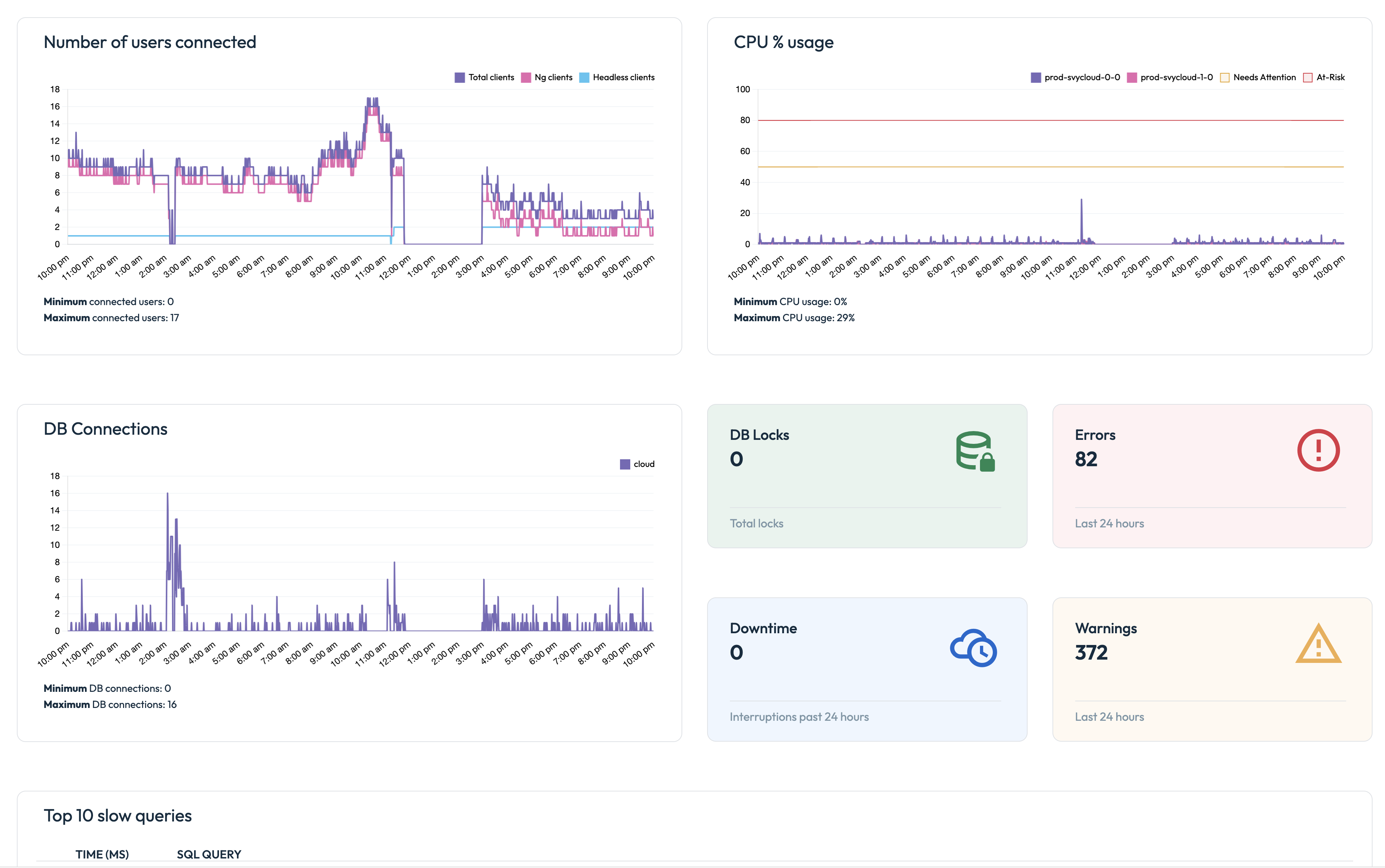
Partial Report Example
Here are the key components of a report:
### **User Connections**
Displays a graph representation of the number of users connected throughout the past 24 hours, along with minimum and maximum values.
### **CPU Usage**
Displays a graph representation of the CPU usage percentage for each environment pod, along with the minimum and maximum values in the past 24 hours.
### **Database Connections**
Shows a visual representation of the number of database connections over the past 24 hours, along with the minimum and maximum values in the past 24 hours.
### **Database Locks**
Indicates the total number of database locks that occurred in the past 24 hours
### **Number of Log Errors and Warnings**
* Number of Log Errors: Displays the total number of errors logged in the past 24 hours
* Number of Log Warnings: Displays the total number of warnings logged in the past 24 hours
### **Downtime (**Number of Interruptions)
Shows the number of interruptions or downtimes experienced in the past 24 hours
### **Top 10 Slow Queries**
A table listing the top 10 slowest database queries executed in the past 24 hours
### Top 10 Slow Methods
A table listing the top 10 slowest methods executed in the past 24 hours
## How to access
To access the daily environment reports:
* Navigate to `Project Overview -> Applications`
* Click on an application card to navigate to `Application Details`
* Click on the `Reports` tile
The Application Reports section provides a clickable list of all the reports generated for the selected application, with each item in the table displaying a timestamp for when it was generated.
Assuming data is still available, each report metric is clickable and can be viewed in-depth.
## Setup Report Email Notifications
{% hint style="warning" %}
Email notifications are enabled on Application level. Repeat these steps for each application you want to configure email notification recipients.
{% endhint %}
You can opt to enable email notifications, when a report is generated, summarizing the environment report.
To set up email notifications and choose email recipients, navigate to Application Settings:
* Navigate to `Project Overview -> Applications`
* Click on an application card to navigate to `Application Details`
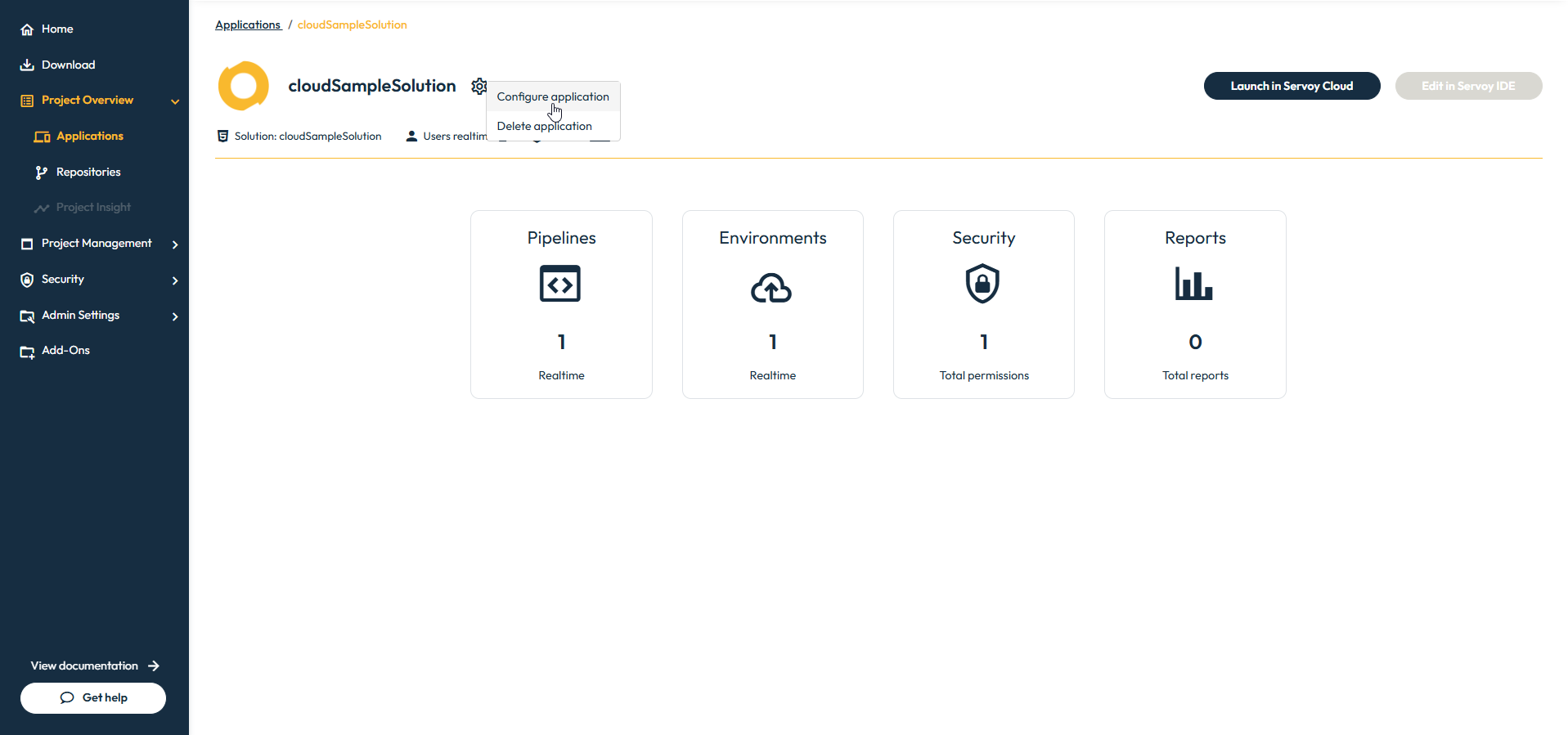
* Click the settings icon to navigate to `Application Settings`
Application Settings Menu
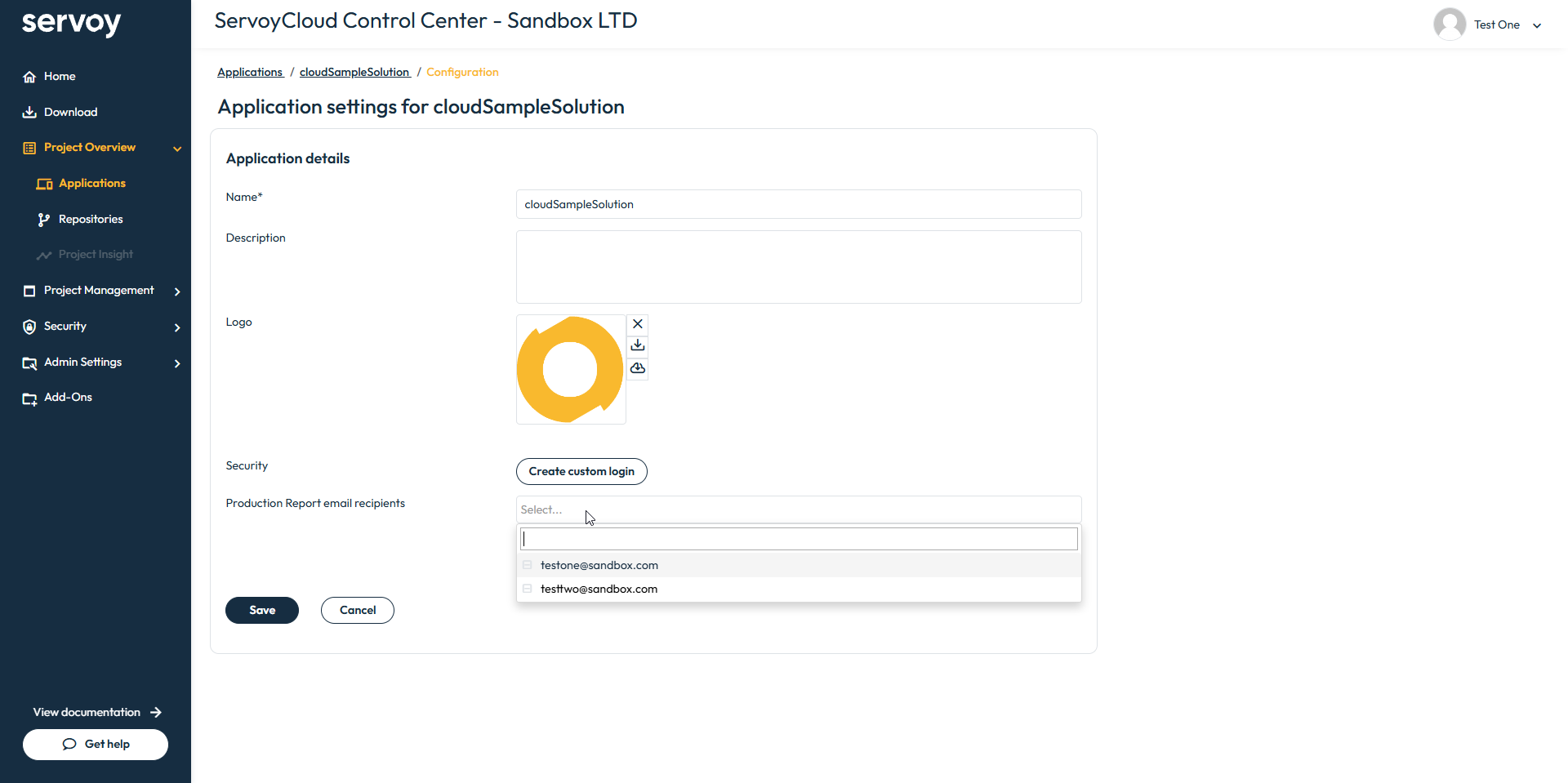
* On the `Application Settings` screen, go to `Production Report Email Recipients`
* Click on the text input to select the namespace users who should receive the report emails
* `Save` the changed settings
Application Settings screen
{% hint style="success" %}
Once recipients are configured, email notifications are enabled for the application and they will receive an email for each production environment report generated.
{% endhint %}
---
# Agent Instructions
This documentation is published with GitBook. GitBook is the documentation platform designed so that both humans and AI agents can read, navigate, and reason over technical content effectively. Learn more at gitbook.com.
## Querying This Documentation
If you need additional information that is not directly available in this page, you can query the documentation by asking a question.
Perform an HTTP GET request on the following URL with the `ask` and `goal` query parameters:
```
GET https://docs.servoy.com/reference/servoy-cloud/cloud-control-center/application-overview/applications/reports.md?ask=&goal=
```
`ask` is the immediate question: it should be specific, self-contained, and written in natural language.
`goal` is what the user is ultimately trying to achieve, the reason they need the answer. Sharing it helps GitBook give you a better, more relevant answer. A goal is most helpful when it describes the outcome the user wants rather than restating the question. For example, with `ask=how do I create an API token`, a goal like `automate deployments from our CI pipeline` lets GitBook tailor the answer to that use case.
The response will contain a direct answer to the question and relevant excerpts and sources from the documentation.
Use this mechanism when the answer is not explicitly present in the current page, you need clarification or additional context, or you want to retrieve related documentation sections.
 to navigate to `Application Settings`